TCP vs UDP: When to Use What, and How TCP Relates to HTTP

Introduction
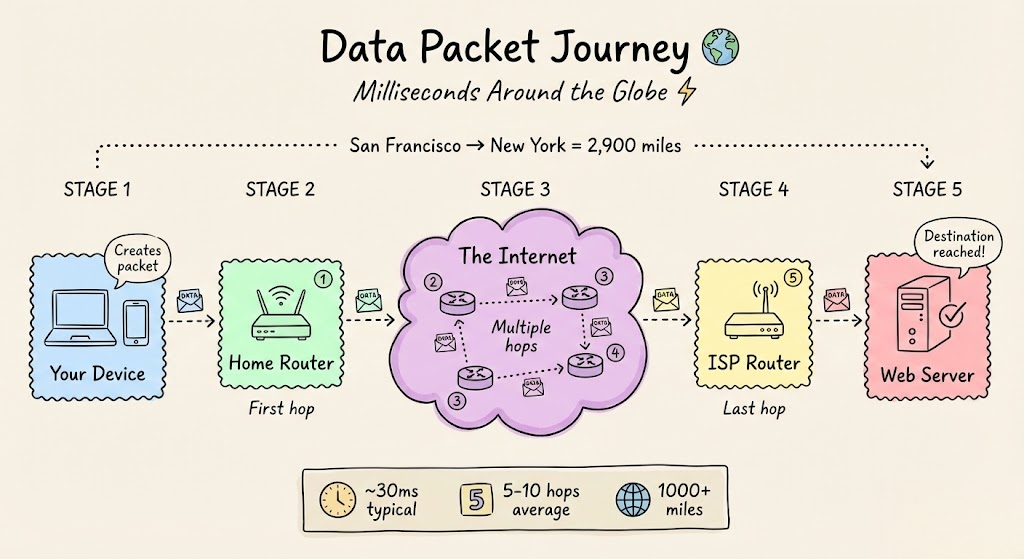
Whenever you visit a website, watch any videos, or play online games, small pieces of information are sent back and forth behind the scenes. These packets are known as data packets; they travel through internet cables, routers, sometimes across long distances around the globe, and they arrive in milliseconds.
But not all data travels the same way as you think.
Some data must arrive perfectly in order, while other data must arrive as fast as possible, even if a few pieces go missing. This is where TCP and UDP come into play.
TCP is reliable and careful; it makes sure that every piece of data arrives safely and in order. While UDP is fast and lightweight, it is designed for speed and real-time communication.
In this article we will explore how TCP and UDP work, their strengths and weaknesses, and why we need them. They are everywhere—from browsing websites to video calls and playing online games.
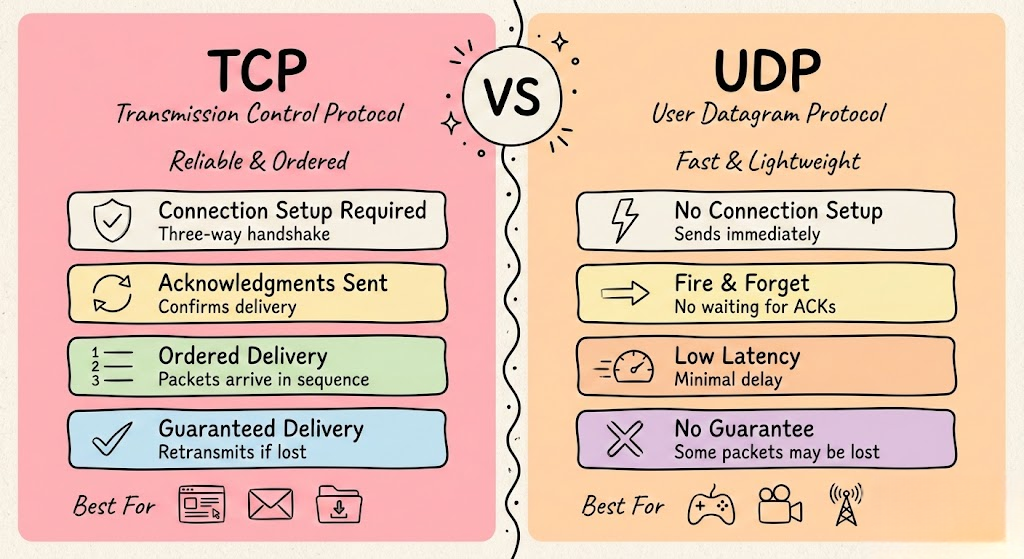
Quick Comparison: TCP vs UDP
Before we dive deep, here's a simple overview:
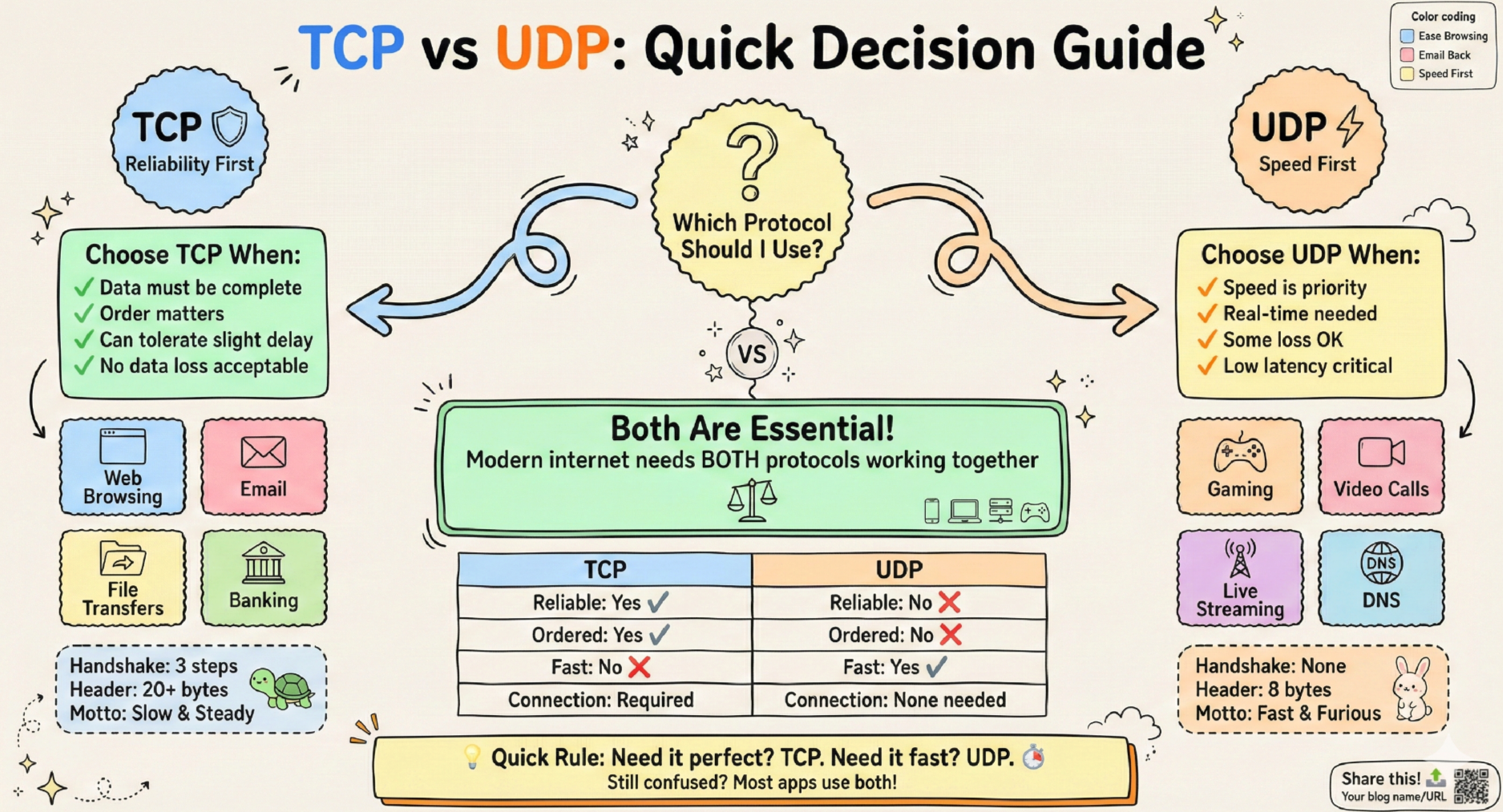
| Feature | TCP | UDP |
| Speed | Slower (ensures accuracy) | Faster (prioritizes speed) |
| Reliability | Guaranteed delivery | No guarantee |
| Connection | Requires setup | No setup needed |
| Data Order | Always in order | May arrive out of order |
| Best For | Web browsing, emails, file downloads | Gaming, video calls, live streaming |
| Real-World Analogy | Registered mail with tracking | Dropping postcards in a mailbox |
TCP (Transmission Control Protocol)
What is TCP?
TCP is one of the most commonly used Internet protocols. It operates at the Transport Layer of Internet communication.
Think of TCP like a teacher taking attendance: The teacher calls everyone's roll number and makes sure every student is present. If someone is missing, they're checked on. TCP does the same thing by making sure every piece of data arrives correctly and in the right order.
TCP establishes a connection before sending data (unlike UDP), making sure that every data packet reaches its destination safely and in the correct order. This makes TCP highly reliable, but it is a little slower compared to UDP.
Why Is It Used?
When we need our data to be transmitted accurately and reliably, we use TCP. It's the backbone of internet communication when you need your data to be delivered accurately.
Here's where you encounter TCP every day:
Web Browsing (HTTP/HTTPS)
Every time you load a webpage, TCP makes sure all the pieces—text, images, videos—arrive intact and in the proper order. Imagine reading an article where random paragraphs were missing or scrambled. That's exactly what TCP prevents!
Email
When you send an email, TCP ensures it arrives with all attachments intact. No missing sentences or broken files.
Downloading Files
Whether it's a movie, a game, or any piece of software, TCP ensures that you get a complete file without any missing data (corrupted file).
Streaming Services
Platforms like YouTube and Netflix use TCP because they'd rather have you wait a second for buffering than show you a glitchy, broken video. Quality matters here.
The Key Features That Make TCP Special
Reliable Transmission
TCP guarantees that every piece of data you send or receive arrives in the right order.
Error Detection and Correction
TCP uses checksums to catch missing data or mistakes and automatically resends data if something goes wrong.
Connection Setup (The Three-Way Handshake)
Before sending any data, TCP establishes a connection to make sure both devices are ready to communicate. It's like calling someone before sending any actual data and making sure that they are ready to receive it.
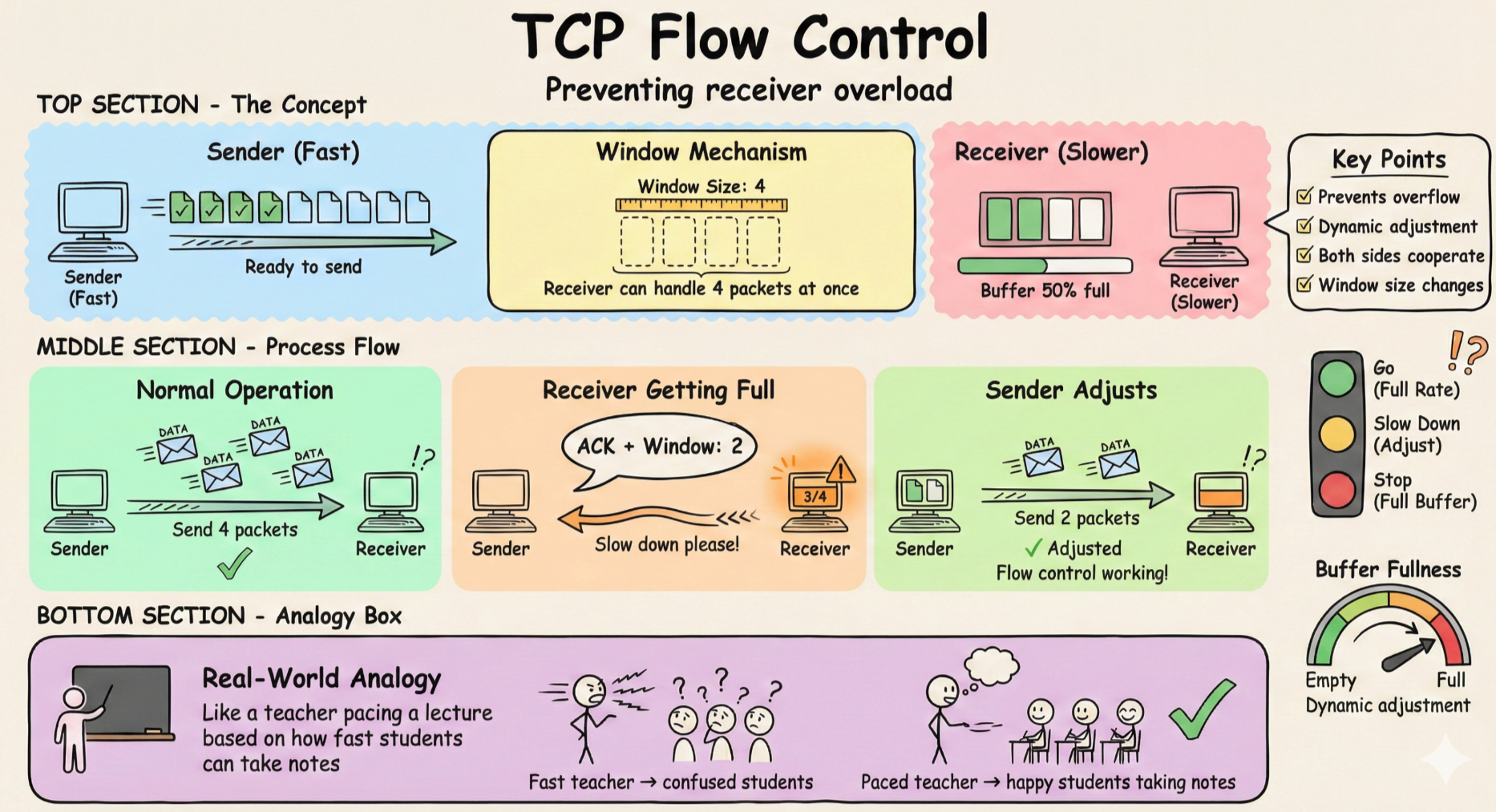
Flow Control
TCP implements flow control through its window size mechanism, preventing fast senders from overwhelming slow receivers. Think of it like a teacher pacing a lecture based on how fast students can take notes.
Multiplexing
TCP lets many apps on the same device send and receive data at the same time by using something called ports. This is why we can browse the web, listen to music, and check emails all at once, without everything getting mixed up.
Session Tracking
TCP keeps track of the entire conversation between two devices, maintaining a stable and reliable connection throughout.
How TCP Actually Works: Following Data on Its Journey
Let's walk through a real example: loading a webpage.
Step 1: Preparing the Data
You type a website address and hit Enter. Your browser decides to use TCP to request that webpage from the server. It prepares a request message asking for the page content.
TCP then breaks this request into smaller, manageable pieces called segments.
Step 2: Adding the Important Details
TCP adds a header to each segment. This header contains crucial information like
Source and Destination Ports - Think of these as apartment numbers, making sure data reaches the right application
Sequence Numbers - Like page numbers in a book, keeping everything in order
Acknowledgment Numbers - Confirms what's been received
Control Flags - Special signals that manage the communication
Checksum - A digital seal that detects if data was tampered with during transit
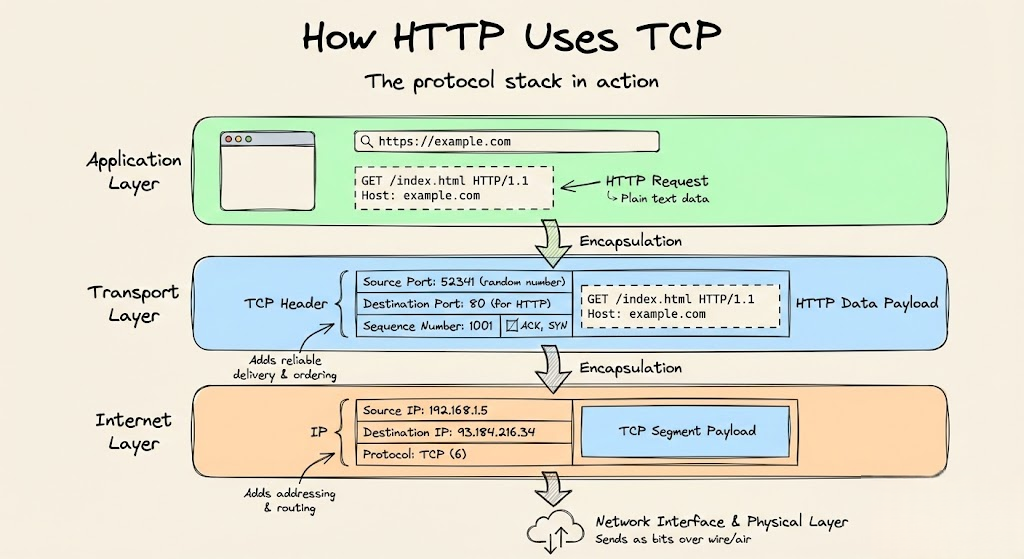
This TCP segment then gets wrapped in an IP packet for delivery across the network.
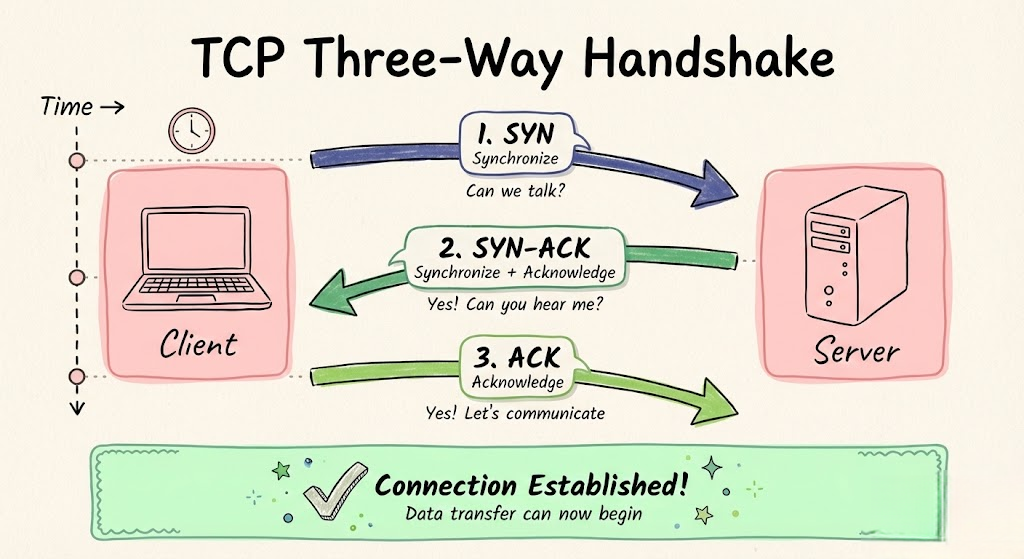
Step 3: The Three-Way Handshake
Before sending your actual request, TCP establishes a connection using a quick three-step conversation. It's a lot like making a phone call before sharing important information.
SYN - Your computer says: "Hello, can we talk?"
SYN-ACK - The web server responds: "Yes, I heard you! Can you hear me?"
ACK - Your computer confirms: "Yes, I hear you too. Let's go!"
Now the connection is established and data can start flowing.
Step 4: Traveling Across the Internet
The TCP segment moves down to the IP layer, which wraps it with another header containing your computer's IP address and the web server's IP address.
This complete package then travels across the internet, hopping through multiple routers and networks until it reaches the web server.
Step 5: Receiving and Verifying
Once the data arrives at the web server:
The network wrapper gets peeled off, revealing the IP packet
The IP layer extracts the TCP segment
TCP verifies the checksum to make sure nothing got corrupted
The sequence numbers confirm everything's in the right order
The server sends back an acknowledgment confirming it received everything
Step 6: Getting Your Webpage
The web server processes your request and sends back the webpage content using the same TCP process. Your browser receives all the HTML, images, scripts, and other assets in the correct order, then displays the complete webpage.
Try this: Next time a webpage loads slowly, notice how it usually appears all at once or in complete sections rather than piece by piece. That's TCP making sure everything arrives properly before displaying it!
Step 7: Saying Goodbye
Once the webpage is fully loaded, TCP politely closes the connection using what's called a four-way handshake:
FIN - Your computer: "I'm done, we can end this"
ACK - Web server: "Got it, understood"
FIN - Web server: "I'm also done"
ACK - Your computer: "Perfect, goodbye!"
Connection closed cleanly and professionally.
The Technical Stuff: TCP Packet Structure
A TCP segment gets placed inside an IP packet before being sent over the network.
TCP Segment Structure:
Header - Starts at 20 bytes but can grow to 60 bytes with optional settings
Data - The actual information being sent (webpage content, file data, etc.)
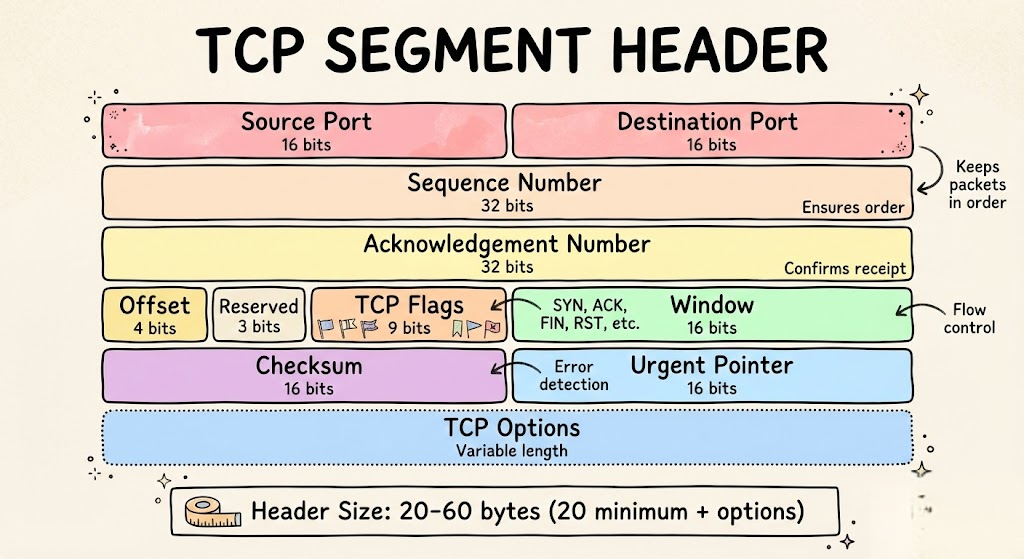
Inside the TCP Header
The TCP header contains several important fields:
Source Port (16 bits) - Identifies which application is sending
Destination Port (16 bits) - Identifies which application should receive
Sequence Number (32 bits) - Ensures packets get reassembled in order
Acknowledgment Number (32 bits) - Confirms receipt and indicates what comes next
Data Offset (4 bits) - Specifies the header length
Reserved (3 bits) - Set aside for future use
Flags (9 bits) - Control signals including:
SYN - Start a new connection
ACK - Acknowledge received data
FIN - Close the connection
RST - Reset if something goes wrong
PSH - Push data immediately
URG - Urgent data present
ECE/CWR - Manage network congestion
NS - Prevents tampering
Window Size (16 bits) - How much data the receiver can handle at once
Checksum (16 bits) - Error detection
Urgent Pointer (16 bits) - Points to urgent data when needed
Options (variable) - Additional performance settings
Padding (variable) - Ensures proper alignment
Understanding TCP Ports
Your device runs many apps at the same time. TCP ports act like apartment numbers, making sure each piece of data goes to the correct app instead of getting mixed up.
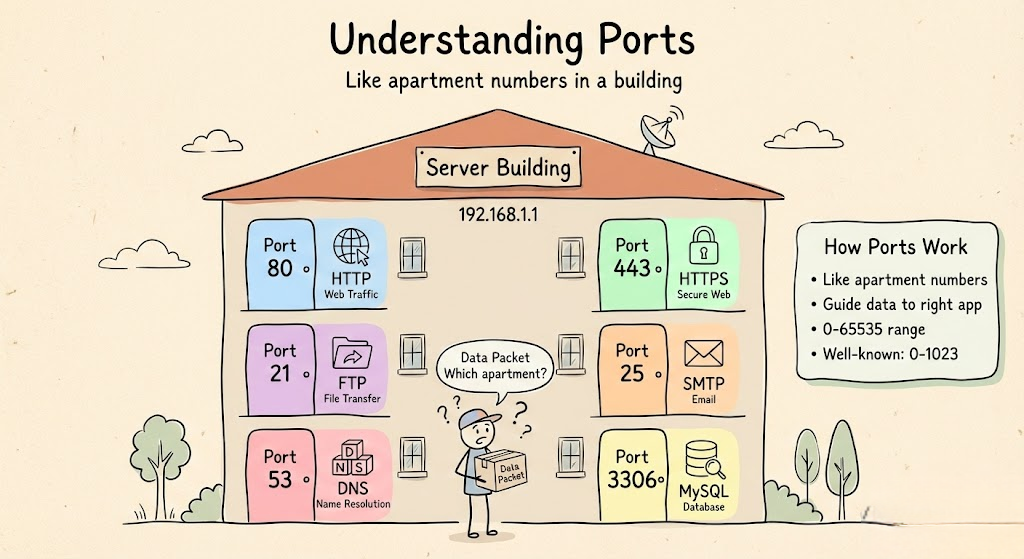
Port Ranges:
Well-Known Ports (0-1023) - Reserved for standard services:
HTTP (Port 80) - Regular web traffic
HTTPS (Port 443) - Secure web browsing
FTP (Port 21) - File transfers
SSH (Port 22) - Secure remote access------
SMTP (Port 25) - Sending emails
Registered Ports (1024-49151) - Assigned to specific applications and services
Dynamic/Private Ports (49152-65535) - Used temporarily for things like your browsing sessions
Common Uses:
Web browsing (HTTP, HTTPS)
File transfers (FTP, SFTP)
Email (SMTP, IMAP, POP3)
Remote access (SSH, Telnet, RDP)
Database communication (MySQL, PostgreSQL)
Online banking
Cloud services and APIs
Advantages of TCP
Reliable Transmission - Guarantees your data arrives completely and in the right order.
Error Detection and Correction - Automatically catches and fixes lost or corrupted data.
Connection-Oriented - Establishes a stable connection before sending anything.
Proper Sequencing - Ensures packets arrive in order, like numbered pages in a book.
Confirmation System - Confirms data receipt, reducing chances of data loss.
Flow Control - Prevents overwhelming the receiver with too much data at once.
Disadvantages of TCP
Slower Than UDP - All those reliability features take some time.
More Overhead - Larger headers and acknowledgments mean more data being sent.
Setup Required - TCP connection requires a handshake; this adds a small delay before any data flows.
Not Great for Real-Time Stuff - Retransmitting lost packets can cause awkward delays in games and live streams.
Real-World Applications of TCP
Web Browsing
File Transfers
Email Services
Remote Access
Online Banking
Database Communication
Messaging Apps
UDP (User Datagram Protocol)
What Exactly Is UDP?
UDP is a fast and lightweight protocol for network communication. It works at the Transport layer.
Think of UDP like dropping postcards in a mailbox: You write your message, drop it in, and hope it arrives. There's no tracking, no confirmation, but it's quick and simple.
UDP does not establish a connection before sending any data, making it much faster than TCP but also less reliable since some data packets might get lost along the way.
Why Is It Used?
UDP is perfect for situations where speed matters more than perfection.
Here's where you encounter UDP every day:
Online Gaming
Games like Call of Duty, PUBG (BGMI), and other online games use UDP for fast communication.
Video Calls (Zoom, WhatsApp)
Video call services like Zoom and WhatsApp prefer a bit of data loss over delay, so they use UDP. Small glitches are less disruptive than long pauses, keeping conversations feeling real-time.
Live Streaming
While watching any live telecast of sports or any YouTube live broadcast, broadcasters use UDP because viewers prefer smooth playback over occasional quality drops.
DNS Lookups
When you type a website name, UDP helps quickly convert it into an IP address, allowing faster web browsing. Speed is essential here.
What Makes UDP Different
Connectionless Protocol
UDP doesn't establish a connection, so it can send data immediately with zero setup delay.
No Formalities Required
Because it's connectionless, UDP is significantly faster than connection-based protocols like TCP. It just sends and moves on.
Super Simple Header
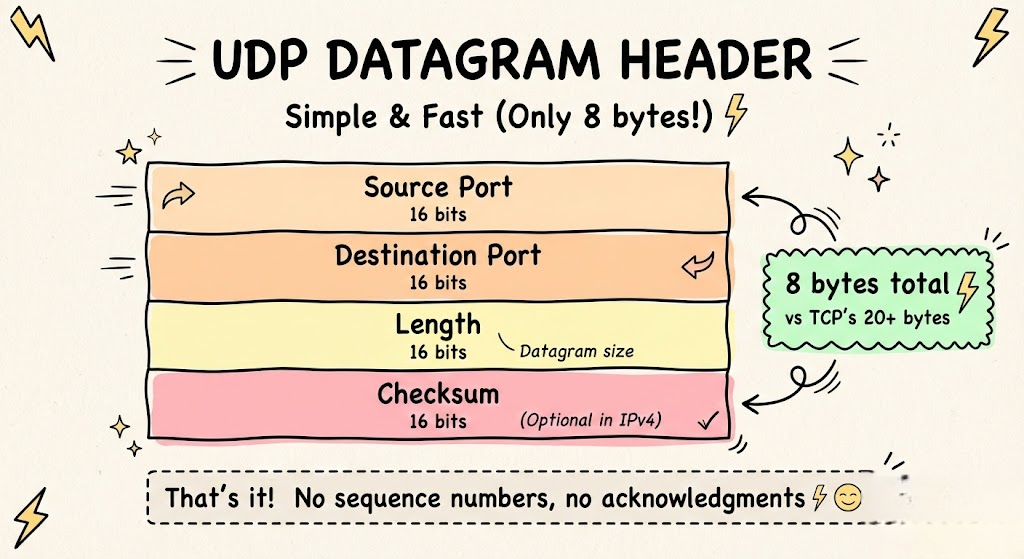
UDP's header is only 8 bytes (compared to TCP's 20+ bytes), meaning less overhead and quicker transmission.
No Acknowledgments
UDP doesn't wait for confirmation that data was received. This speeds things up considerably but means there's no guarantee your data will arrive.
How UDP Works: The Complete Journey
Let's follow an example: A video call on Zoom.
Step 1: Packaging the Data
Your camera captures video, and your microphone records audio. Zoom's application decides to send this data using UDP for real-time communication.
The application packages the audio and video data into small chunks ready for transmission.
Step 2: Adding Headers & Creating the UDP Datagram
UDP adds a very simple, lightweight header to each datagram containing:
Source Port - Your Zoom app's port number
Destination Port - The recipient's Zoom app port
Length - How big the datagram is
Checksum - A basic error check (optional in some cases)
That's it! No sequence numbers, no acknowledgments—just the essentials.
Step 3: Sending Immediately
Unlike TCP, there's no handshake. UDP immediately sends the datagram to the IP layer, which adds IP addressing information and sends it across the network.
This is the key advantage: No setup delay means your video and audio reach the other person almost instantly.
Step 4: Traveling Across the Network
The datagram travels through routers and network segments. Some might get lost due to network congestion, but UDP doesn't care—it keeps sending new data.
Why this works for video calls: If a single video frame or split-second of audio gets lost, you barely notice it. But if there were delays waiting for retransmissions (like TCP does), the conversation would feel laggy and awkward.
Step 5: Receiving the Data
When datagrams arrive at the destination:
The network wrapper is removed
The IP layer extracts the UDP datagram
UDP checks the destination port and delivers to Zoom
Zoom processes the video/audio and displays it
No acknowledgment is sent back. The receiver doesn't confirm receipt—it just processes whatever arrives.
Step 6: Experiencing the Result
You see and hear the other person in real-time. Occasionally, there might be a slight glitch or pixel artifact (lost packet), but the conversation flows naturally without annoying delays.
Try This: During your next video call, watch what happens when your internet connection weakens. You might see pixelation or brief freezes, but the call continues—that's UDP prioritizing speed over perfection!
Technical Details: UDP Packet Format
A UDP packet, also called a datagram, has two main parts:
UDP Datagram Structure:
Header - Contains control information, only 8 bytes in size
Data - The actual content being sent, can be up to 65,535 bytes
UDP Header Fields Explained
The UDP header is extremely simple with just four fields:
Source Port (16 bits) - Identifies the port of the sending application
Destination Port (16 bits) - Identifies the port of the receiving application
Length (16 bits) - Specifies the total length of the datagram (header + data)
Checksum (16 bits) - Error-checking for header and data integrity (optional in IPv4, mandatory in IPv6)
The checksum makes sure the data wasn't corrupted during transmission. It's calculated using the header and payload data.
Understanding UDP Ports
UDP ports work similarly to TCP ports but without the connection tracking.
Port Ranges:
Well-Known Ports (0-1023) - Standard services:
DNS (Port 53) - Converts domain names to IP addresses
DHCP (Ports 67/68) - Assigns IP addresses to devices
NTP (Port 123) - Synchronizes time across devices
TFTP (Port 69) - Simple file transfers
Registered Ports (1024-49151) - Specific applications
Dynamic/Private Ports (49152-65535) - Temporary connections
Key Difference: UDP ports are stateless—meaning there is no session tracking. This makes UDP faster but less reliable since we cannot confirm if data was received or not.
Common UDP Port Uses:
Streaming (YouTube Live, Netflix in some cases)
VoIP (Zoom, WhatsApp calls)
Online Gaming (most multiplayer games)
DNS Queries (every time you visit a website)
Time Synchronization (keeping your device's clock accurate)
Network Discovery Services
Advantages of UDP
No Connection Needed - Sends data immediately, making it extremely fast.
Broadcast and Multicast - Can send to multiple devices at once, perfect for streaming.
Highly Adaptable - Works across different types of networks and devices.
Perfect for Real-Time - Low latency makes it ideal for live video, gaming, and calls.
Minimal Overhead - Tiny headers mean maximum efficiency.
Continuous Flow - Doesn't pause for lost packets, maintaining smooth real-time delivery.
Disadvantages of UDP
No Delivery Guarantee - You can't know if data actually arrived.
No Order Guarantee - Packets may arrive scrambled, requiring the app to sort them out.
Unreliable - Some packets will get lost with no recovery mechanism.
Vulnerable to Congestion - Routers tend to drop UDP packets first during traffic jams.
No Built-in Error Handling - If errors are detected, UDP doesn't try to fix or resend.
Real-World Applications of UDP
Streaming Services
Online Gaming
DNS Queries
VoIP Services
IoT Devices
Network Monitoring
Live Broadcasting
Which Protocol Should You Care About?
As a Regular Internet User: You don't need to choose—both work automatically behind the scenes! Your devices and applications use the right protocol for each task.
As Someone Learning Networking: Understanding both helps you troubleshoot issues and design better systems:
Webpage loading slowly? Might be TCP retransmitting lost packets
Video call getting choppy? Could be UDP packets getting dropped due to a poor connection
As a Developer: Choose based on your application's needs:
Building a messaging app or file transfer? Use TCP
Creating a game or video streaming app? Use UDP
Need real-time updates but can't afford data loss? Consider hybrid approaches
What is HTTP and Where It Fits?
HTTP (Hypertext Transfer Protocol) is the fundamental communication protocol of the World Wide Web. It defines how information is requested and transmitted between a web browser (client) and a web server.
Whenever you type a website URL like https://www.google.com into the browser, you are using HTTP.
Important: HTTP does not send data by itself. It relies on lower-level protocols like TCP (and sometimes UDP) to actually transport data.
In HTTP, the browser works as a client that sends requests to a server, which then processes them and sends back responses. As HTTP is stateless, the server does not remember earlier requests, treating each one as a new interaction.
In the OSI model, HTTP operates at the Application Layer, and typically communicates on port 80 (or port 443 for HTTPS).
Relationship Between HTTP and TCP
HTTP uses TCP to send and receive data.
Why HTTP Uses TCP
HTTP requires reliable delivery, correct order of data, and complete and accurate content.
Imagine a webpage with missing HTML or broken images—it would be unusable. TCP guarantees that every byte arrives completely and in the correct order, making it ideal for HTTP.
When you click a link, your browser sends an HTTP GET request via TCP to port 80 (or 443 for HTTPS). The server responds with the complete webpage data, also using TCP to ensure nothing is missing or corrupted.
Comments
Join the discussionNo comments yet. Be the first to comment.


